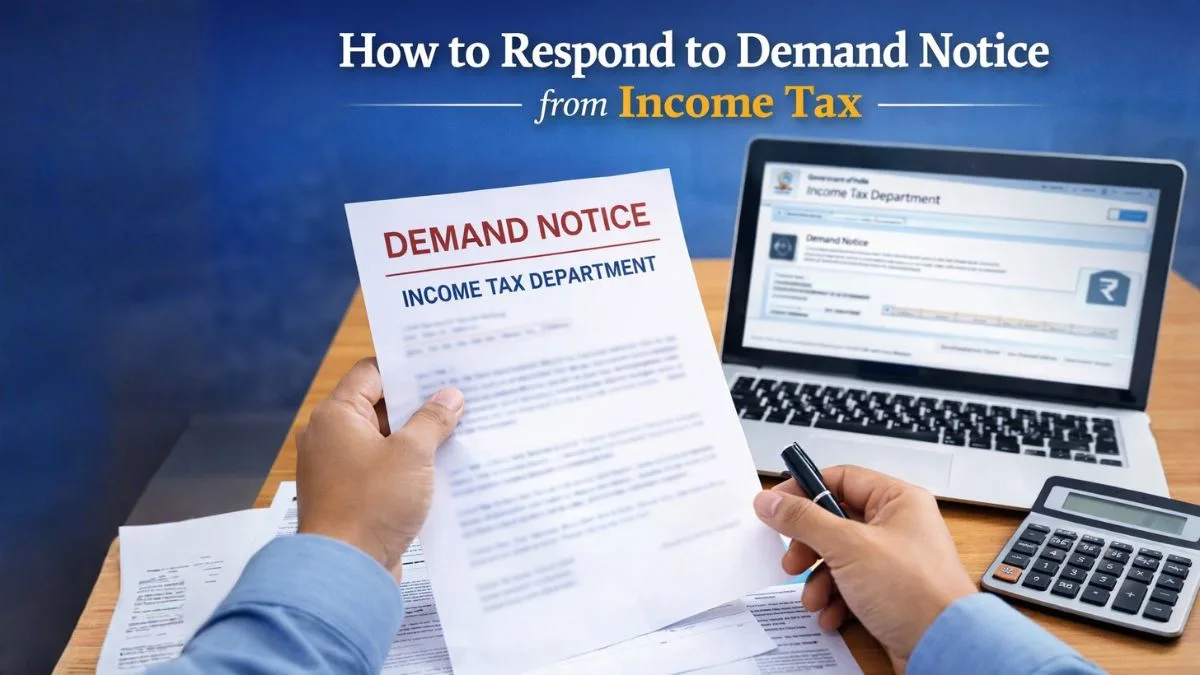
How to Respond to Demand Notice from Income Tax (Step-by-Step Guide)
When you first notice an outstanding tax demand
It usually appears quietly.
You log into the tax portal for something routine — maybe to check a refund or download a return copy.
And then you see it.
Outstanding demand.
For a moment, it feels serious.
But let’s pause here.
A tax demand notice doesn’t automatically mean you’ve done something wrong. Quite often it’s simply a mismatch between what the system calculated and what you reported.
And most of the time, it can be resolved directly online.
The real question becomes simple:
How exactly do you respond to it?
Let’s walk through that slowly.
First understand what a demand notice means
An income tax demand notice is issued when the department believes additional tax is payable.
This could happen because of several reasons.
Sometimes the return processing finds a mismatch.
Sometimes TDS records don’t match the filed return.
Sometimes advance tax payments were not captured properly.
Now think about this.
Even a small reporting difference can trigger a demand.
And the notice simply asks you to either:
- accept the demand and pay the tax
- or submit an explanation
That explanation is the response to the notice.
The official instruction for responding to demand notice
The process generally works like this:
To respond to an income tax demand notice in India, log in to the e-Filing portal, go to Pending Actions > Response to Outstanding Demand, and select Submit Response to agree or disagree with the demand. If you agree, pay immediately; if you disagree, provide detailed reasons, such as proof of prior payment.”
That instruction summarizes the entire system.
But if you're doing it for the first time, it helps to see the actual steps clearly.
Step-by-step: how to respond to demand notice from income tax
Step 1—Log in to the e-Filing portal
Visit the official Income Tax e-Filing website.
Log in using:
- PAN number
- Password
- Captcha verification
Once inside your dashboard, the system displays alerts if any demand notice is pending.
Sometimes the notification appears right on the homepage.
Other times you need to check the pending actions section.
Step 2 — Open Pending Actions
At the top of the portal menu, you will find Pending Actions.
Click it.
Inside this section there are several options, such as:
- e-Proceedings
- Compliance requests
- Response to Outstanding Demand
This is the section where tax demand notices are managed.
Click it to proceed.
Step 3 — View the outstanding demand details
When you open the page, the portal displays details, including:
- Assessment Year
- Outstanding demand amount
- Date of notice
- Status of the demand
Now here’s something important.
Don’t rush to pay immediately.
Take a moment to review the demand carefully.
Sometimes the tax had already been paid earlier, but the system hadn't updated yet.
Yes, that happens more often than people realize.
Choosing your response: agree or disagree
Once you review the demand details, you must select the appropriate response to the notice.
Generally there are two options.
Agree with the demand
If you confirm that the demand amount is correct, you should accept it.
Then the portal will redirect you to make payment.
You can pay the tax immediately using available payment methods.
After payment, the demand will eventually be cleared in the system.
Disagree with the demand
Now here’s where things get interesting.
Sometimes the demand is incorrect.
For example:
- tax already paid earlier
- TDS not considered
- incorrect calculation by the system
- income already reported
In this situation you should disagree with the demand and provide an explanation.
Your response to the demand notice should include clear reasons.
Supporting documents help a lot here.
Typical documents include the following:
- challan payment receipts
- Form 16 or TDS certificates
- bank statements
- investment records
The clearer your explanation, the faster the issue gets resolved.
When tax demand was already paid earlier
This situation confuses many taxpayers.
You paid tax while filing your return.
But the portal still shows a demand.
What should you do?
In such cases, select the option:
Demand already paid
Then enter the details of the earlier payment.
Usually, you will need to provide the following:
- BSR code
- challan number
- payment date
- amount paid
Once submitted, the system verifies the payment details.
If everything matches, the demand notice gets removed.
When the system shows demand but refund was adjusted
Another situation happens sometimes.
The department adjusts your pending refund against the demand.
So the demand technically gets paid using your refund amount.
When this happens, the portal may show the demand as adjusted.
Which means you don't need to take further action.
Still, it’s always wise to verify the adjustment details.
Deadlines matter here
Every demand notice includes a response timeline.
Usually around 30 days.
Ignoring it can lead to complications.
The department may start recovery actions or adjust future refunds.
Which is why experts always recommend submitting a response to the notice as soon as possible.
Even if your response is simply disagreement.
The key is to acknowledge the notice.
Why demand notices are becoming more common
Something has changed over the past few years.
The tax department now uses advanced data matching systems.
These systems compare information from multiple sources, such as
- AIS (Annual Information Statement)
- Form 26AS
- bank transaction reports
- property registration data
- securities transactions
When even a small mismatch appears, the system may generate a demand notice automatically.
So the number of notices has increased.
But that doesn’t mean enforcement is harsher.
It simply means reporting systems are more accurate now.
A small habit that helps avoid these notices
Before filing a tax return, always review three things.
- Form 26AS
- AIS statement
- TDS details
If these records match your return correctly, demand notices become much less likely.
Most tax mismatches start when taxpayers file returns quickly without reviewing these records.
It’s understandable.
But a quick review saves trouble later.
Final thoughts
Understanding how to respond to a demand notice from income tax becomes much easier once you know the steps.
Log in to the e-filing portal, open Pending Actions, select Response to Outstanding Demand, and submit your response to the demand notice.
If you agree with the demand, pay the tax immediately.
If you disagree, provide clear explanations with supporting documents.
That’s the entire process.
Still, if the demand amount is large or the notice contains complex sections that seem confusing, seeking professional advice is often the safer approach.
Tax procedures can sometimes involve technical interpretations.
Platforms like Callmyca.com help taxpayers review notices and prepare the correct response to demand notices so issues get resolved smoothly without unnecessary stress.