Demand Notice Password Income Tax: How to Open Income Tax Notice PDF (Complete Guide)
Understanding the Demand Notice Password in Income Tax
Receiving a notice from the Income Tax Department can make anyone a little nervous. The moment people see an email titled “Income Tax Notice,” their first instinct is usually panic.
But here’s the interesting part.
Most of the time, the document attached to that email is simply a password-protected PDF. And many taxpayers don’t know how to open it because they are unsure about the demand notice password and income tax format.
The Income Tax Department protects notices with a password for security reasons. These documents contain sensitive personal information like your PAN, income details, and tax calculation.
So naturally, they need protection.
And the password format is actually very simple.
In fact, once you understand the rule, opening the notice takes just a few seconds.
The Exact Password Format for Income Tax Notices
Let’s understand the official rule first.
The Income Tax Department uses a specific password structure for opening notices, ITR acknowledgments, and intimation documents.
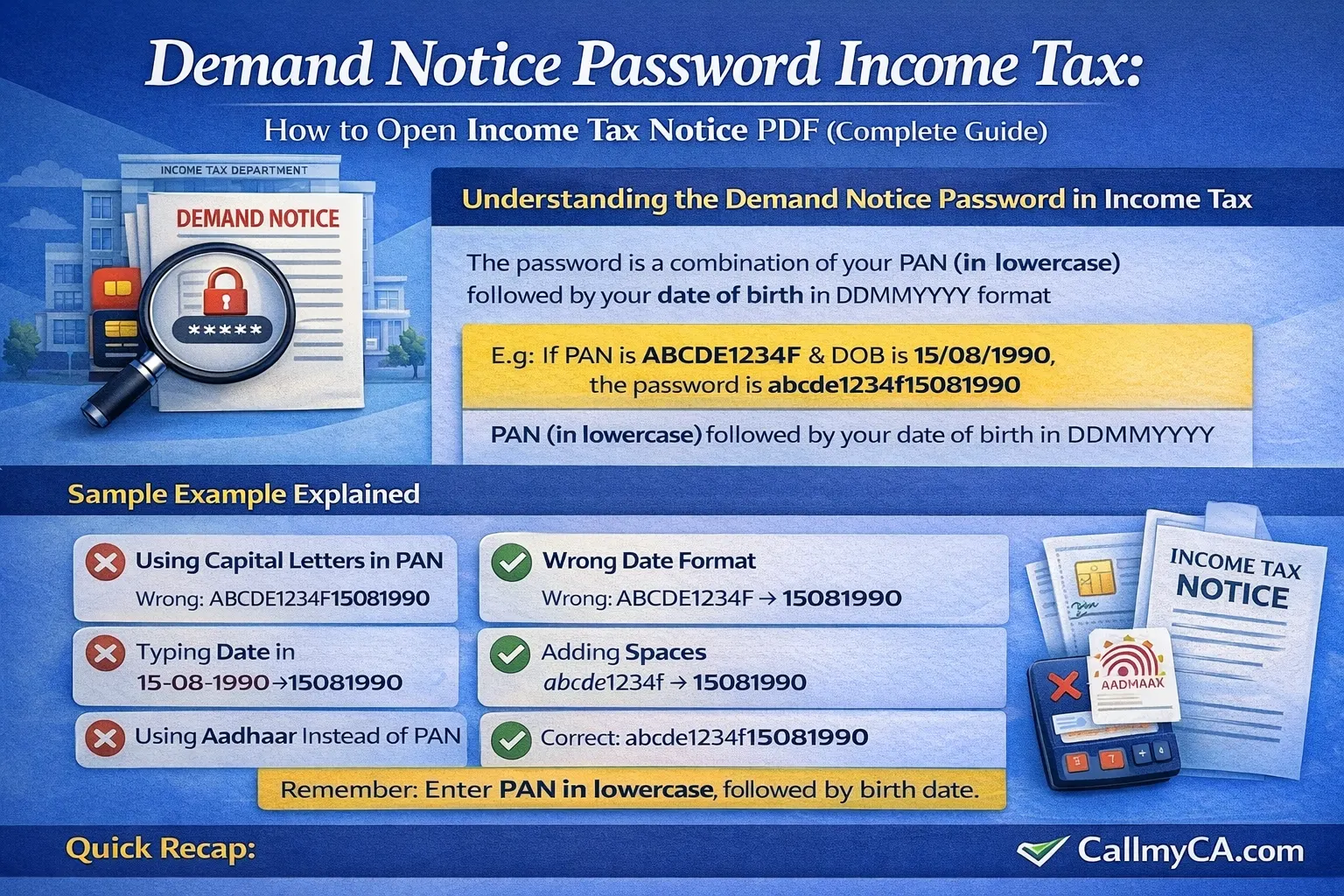
The password to open an Income Tax demand notice (or ITR-V/Intimation) is a combination of your PAN (in lowercase) and your date of birth in DDMMYYYY format. For example, if your PAN is ABCDE1234F and your DOB is 15/08/1990, the password is abcde1234f15081990
In simple terms:
your PAN (in lowercase) followed by your date of birth in DDMMYYYY format
This rule applies to several documents sent by the Income Tax Department.
Including:
-
Demand notices
-
Intimation notices
-
ITR-V acknowledgement files
-
Some compliance notices
Most people make the mistake of typing the PAN in capital letters.
That’s where the problem happens.
You must enter your PAN in lowercase, followed by your date of birth in the required format.
Example of Income Tax Notice Password
Sometimes an example makes things easier to understand.
Imagine your details look like this:
-
PAN: ABCDE1234F
-
Date of Birth: 15 August 1990
Now convert the PAN to lowercase.
ABCDE1234F → abcde1234f
Then convert your date of birth into the DDMMYYYY format.
15/08/1990 → 15081990
Now combine both.
Final password:
abcde1234f15081990
That’s it.
No spaces.
No symbols.
Just the PAN and date of birth.
And remember—you must enter your PAN in lowercase, followed by your birth date.
A small mistake like using uppercase letters will prevent the file from opening.
What Is an Income Tax Demand Notice?
Before we go further, let’s talk about what a demand notice actually means.
An income tax demand notice is issued when the tax department believes you have unpaid taxes. This could happen due to several reasons.
For example:
-
Tax calculation mismatch
-
TDS mismatch
-
Incorrect deduction claims
-
Income not reported in the return
-
Advance tax shortfall
In many cases, the notice is not a penalty.
It simply summarizes the Income Tax Department's assessment of your ITR, based on the information available with them.
Sometimes the system compares your filed return with the data available in Form 26AS, AIS, or TIS.
If something doesn’t match, the department may generate a demand.
And that demand notice will arrive in your registered email.
Usually as a password-protected PDF.
Why Income Tax Notices Are Password Protected
Let’s pause for a moment.
Most people wonder why the department sends password-protected files at all.
The answer is simple.
Security.
Income tax notices contain sensitive information like
-
PAN details
-
Total income
-
Tax payable
-
TDS information
-
Financial data
Without password protection, anyone who gains access to the email could read the file.
That’s why the Income Tax Department uses a standard password system.
It ensures only the taxpayer can open the document.
And because the password uses personal data like PAN and date of birth, it’s easy for the taxpayer to remember.
Common Types of Income Tax Notices
Many taxpayers think all notices are the same.
But that’s not really true.
The department sends different types of notices depending on the situation.
Here are some of the most common ones.
1. Intimation under Section 143(1)
This is the most common notice.
It simply summarizes the Income Tax Department's assessment of your ITR after processing your return.
It usually shows:
-
Income as per return
-
Income as per department
-
Refund or tax payable
This is not a scrutiny notice.
It’s just a processing summary.
2. Demand Notice under Section 156
This notice is issued when tax is payable.
It means the department believes some tax remains unpaid.
Reasons could include:
-
Incorrect tax calculation
-
Missing TDS credit
-
Additional income detected
The notice will mention the amount payable and the due date.
3. Compliance Notice
Sometimes the department wants clarification.
For example:
-
High-value transactions
-
Foreign remittances
-
Credit card spending
In such cases, they may send a compliance notice asking for an explanation.
4. Scrutiny Notice
This is more serious.
It means your return has been selected for detailed examination.
But again—don't panic.
Most scrutiny cases are routine.
Different Password Types Used in Income Tax Documents
Here’s something many people don’t realize.
There can be different password types depending on the document issued by the department.
Let’s look at a few common ones.
1. PAN Date of Birth (Most Common)
This is the standard format.
your PAN (in lowercase) followed by your date of birth in DDMMYYYY format
Used for:
-
Demand notices
-
Intimation notices
-
ITR-V acknowledgements
2. PAN Incorporation Date (For Companies)
For companies, the format may include:
-
PAN in lowercase
-
Date of incorporation
The logic remains the same.
Personal identification data.
3. PAN Registration Date (Other Entities)
Trusts or partnerships may use registration dates instead of birth dates.
But again—PAN remains the base.
How to Download an Income Tax Demand Notice
Sometimes taxpayers miss the email or accidentally delete it.
Don’t worry.
You can still download the notice from the income tax portal.
Here’s how.
Step-by-Step Process
-
Visit the Income Tax e-filing portal
-
Log in using PAN and password
-
Go to Pending Actions
-
Select Response to Outstanding Demand
-
Download the notice PDF
Once downloaded, you can open it using the demand notice password and income tax format.
Remember the rule:
Enter your PAN in lowercase, followed by your birth date.
Common Mistakes While Opening Income Tax Notices
This happens more often than you think.
People try the password multiple times, but the file still doesn’t open.
Usually the mistake is very small.
Here are the most common errors.
1. Using Capital Letters in PAN
The password requires lowercase letters.
Example:
Wrong: ABCDE1234F15081990
Correct: abcde1234f15081990
2. Wrong Date Format
Some people enter dates like this:
15-08-1990
That won’t work.
The correct format is:
15081990
3. Adding Spaces
The password must be continuous.
Wrong:
abcde1234f 15081990
Correct:
abcde1234f15081990
4. Using Aadhaar Instead of PAN
Only PAN is used in the password.
Not Aadhaar.
What To Do After Opening the Demand Notice
Once you open the notice, read it carefully.
Don’t ignore it.
Even if the demand amount is small.
Usually the notice will mention one of these outcomes:
-
Tax payable
-
Refund adjustment
-
No demand
If tax is payable, you have two options:
-
Pay the demand online
-
Submit a response if the demand is incorrect
Sometimes the demand appears because of a mismatch in TDS data.
So before paying anything, always verify the details.
When a Demand Notice May Be Incorrect
Here’s something important.
Not every demand notice is correct.
Sometimes the system generates it because of missing data.
For example:
-
TDS credit not reflecting
-
Advance tax mismatch
-
AIS data difference
In such cases, you can submit a response on the portal.
And the demand may be cancelled after verification.
So don’t rush to pay.
Always check first.
Why You Should Never Ignore Income Tax Notices
Many taxpayers simply ignore these emails.
That’s a mistake.
If a demand notice is not responded to, the department may:
-
Adjust future refunds
-
Add interest
-
Start recovery proceedings
So even if you believe the notice is incorrect, respond to it.
It takes only a few minutes on the portal.
And it can prevent bigger problems later.
Quick Summary
Let’s recap the most important points.
-
The demand notice password for income tax follows a simple format.
-
The password to open an Income Tax demand notice (or ITR-V/Intimation) is a combination of your PAN (in lowercase) and your date of birth in DDMMYYYY format. For example, if your PAN is ABCDE1234F and your DOB is 15/08/1990, the password is abcde1234f15081990
-
Always enter your PAN in lowercase, followed by your birth date.
-
These notices often summarize the Income Tax Department's assessment of your ITR after processing your return.
-
There may be different password types depending on the taxpayer category.
-
Never ignore income tax notices even if the demand amount seems small.
Final Thoughts
Income tax notices sound intimidating, but in reality most of them are routine communications from the department.
The biggest confusion usually comes from something very small.
The password.
Once you know that it’s simply your PAN (in lowercase) followed by your date of birth in DDMMYYYY format, opening the file becomes effortless.
And that’s the key.
Understanding the process removes the fear.
If you ever receive a demand notice and feel unsure about how to respond, it’s always better to get professional guidance.
You can explore expert tax assistance and quick notice resolution support through Callmyca.com, where professionals help taxpayers handle income tax notices, responses, and compliance smoothly.